Uploading Music
This guide is for artists and labels who want to share their music on ongaku.club.
Getting Upload Access
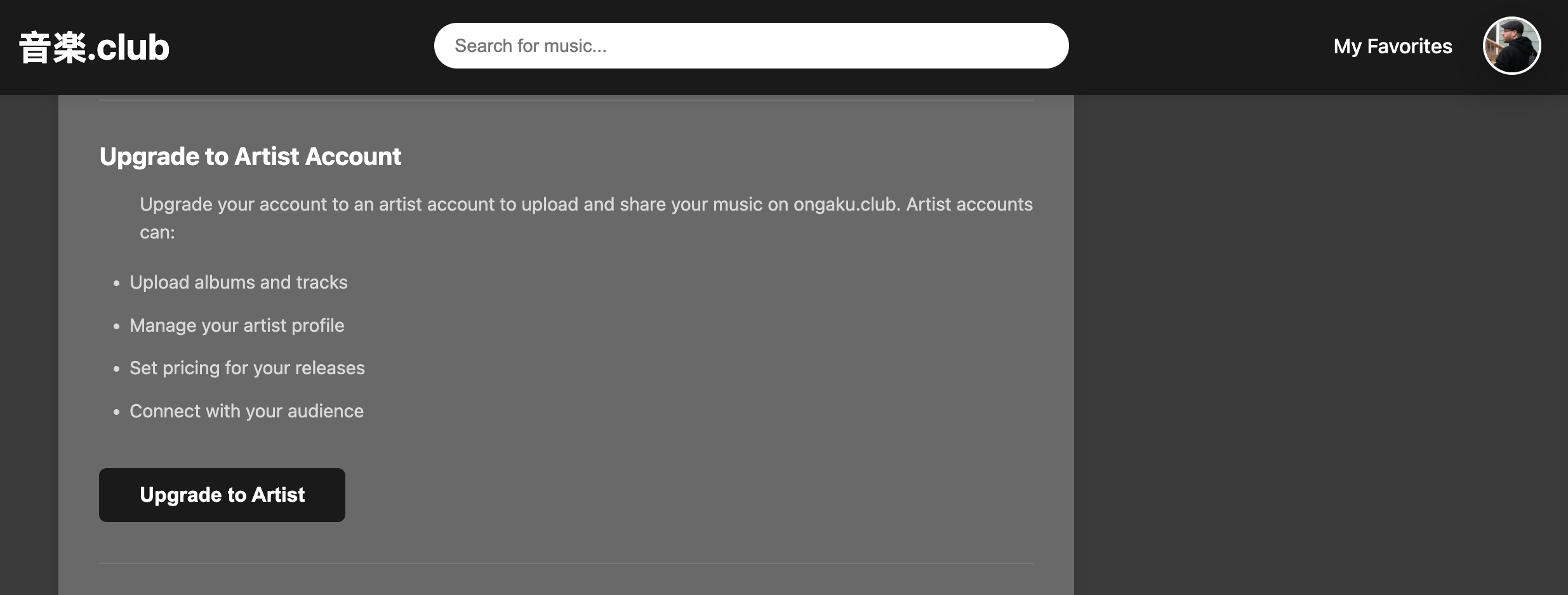
To upload music, you need to be granted artist or label privileges:
- Create an account by logging in with your Bluesky/AT Protocol account
- Visit your settings by clicking on the profile icon on the upper right
- Click the Upgrade to Artist button
Creating Your Artist Profile
Before uploading albums, create your artist profile:
- Navigate to Upload Dashboard
- Click New Artist
- Fill in the required information:
- Artist name
- Biography
- Profile image
- Click Create Artist
Uploading an Album
Once you have an artist profile:
- Go to Upload Dashboard
- Click New Album
- Select the artist (or label) the album belongs to
- Fill in album details:
- Album title
- Description
- Cover art image
- Price
- Release date
- Tags (for discoverability)
- Upload tracks:
- Upload audio files (MP3 format recommended)
- Set track order
- Add track titles
- Click Create Album
Managing Your Content
Editing Albums
- Navigate to Upload Dashboard
- Click Edit on any of your albums
- Update information and click Save Changes
Editing Artist Profile
- Go to Upload Dashboard
- Click Edit next to your artist name
- Update profile information and click Save
Deleting Content
You can delete albums or artist profiles from the Upload Dashboard. Note that this action cannot be undone.
Label Accounts
If you’re a label representing multiple artists:
- Create a label profile from the Upload Dashboard
- Create artist profiles for each artist on your roster
- Link artists to your label through the admin interface
- Upload albums and assign them to the appropriate artists
Best Practices
- Cover Art: Use high-quality images (at least 800x800px)
- Audio Files: Use high-quality MP3 files (at least 192kbps)
- Tags: Add relevant tags to help listeners discover your music
- Descriptions: Write compelling album and artist descriptions
- Pricing: Set fair prices that reflect the value of your work
Support
If you encounter any issues while uploading, please contact us through our Bluesky account @ongaku.club.